
Launching a WordPress website is, honestly, more than just installing a theme, tossing in a few pages, and pointing a domain. A really solid site needs careful planning, responsive design, the right technical setup, SEO, security, speed improvements, analytics tracking, and then continual upkeep too.
Whether you’re building a business page, running an ecommerce store, maintaining a blog, offering services, or launching a lead-generation platform, it helps a lot to have a structured checklist. This way, those little oversights don’t slowly turn into costly complications later on.
At Bloom Agency, we treat WordPress development like a full digital process, not only “build then done” kind of work. From mapping the site structure to fine-tuning page speed and getting everything ready for search engines, each step matters for the final user experience.
Below is a practical WordPress website launch checklist, with the major steps you should review in 2026.
1. Start With Proper Website Planning
Before jumping into the WordPress dashboard, decide what the website actually needs to do, like what it needs to accomplish. A site built without clear goals can get weird fast, and then it becomes harder to navigate and also more difficult to optimize later.
First, figure out the primary purpose of the website. Is it meant to generate leads , sell products, share information, grow a brand, or bring in organic traffic from search engines?
Then, take a close look at your target audience, and try to understand what visitors expect when they land on the site. That should shape the content, the way people move through pages, the visual style, the calls to action, and the entire website structure overall.
Before development even starts, create a sitemap. Add the key pages, like Home, About Us, Services, Products, Blog, Contact, FAQs, Privacy Policy, and Terms if it makes sense for your situation.
Having a clean sitemap gives developers, designers, content writers, and SEO specialists a shared plan to follow, and it keeps everyone aligned without guesswork.
2. Choose the Right Domain and Hosting
Your domain name should be simple, relevant, memorable, and easy to type. Avoid unnecessarily complicated spellings, excessive hyphens, or confusing combinations.
The next step is choosing reliable hosting. Hosting affects website availability, loading speed, security, scalability, and overall performance.
When comparing hosting providers, consider:
- Server performance
- Storage capacity
- SSL availability
- Backup options
- Security features
- Customer support
- Server location
- Scalability
- WordPress compatibility
Do not choose a hosting plan only because it is inexpensive. A low-cost hosting environment can become restrictive when your website starts receiving more traffic.
3. Install WordPress Correctly
Always install a current, supported version of WordPress from a trusted source or through your hosting provider’s official installation system.
During installation, avoid using predictable administrator usernames. Create a strong password and use a unique administrator account.
Configure the website URL correctly and make sure the preferred version of the domain is consistent. Decide whether the website will use www or non-www and maintain one canonical version.
Enable HTTPS using an SSL certificate before the website is launched publicly. HTTPS protects information transferred between visitors and your website and is now a standard expectation for professional websites.
4. Configure Basic WordPress Settings

Once WordPress has been installed, review the main settings before beginning development.
Update the website title and tagline. Configure the correct time zone, date format, and language. Review the administration email address and ensure that it is accessible.
Set the appropriate permalink structure. A clean URL such as:
example.com/wordpress-services/
is generally easier to understand than a URL containing unnecessary parameters or post IDs.
Remove default posts, sample pages, comments, and unused content.
Review media settings and decide how uploaded files should be organized. This becomes increasingly important as a website’s media library grows.
5. Build a Logical Website Structure
A solid WordPress site kind of needs to help visitors, like actually make it easier for them to find what they’re looking for. It should not feel like a maze with wrong turns. Build your navigation from the sitemap instead of manually tossing every single page into the main menu. You want the key pages to show up quickly, so users don’t end up hunting around across multiple layers just to reach something simple.
Also, pick descriptive page names and keep the hierarchy consistent, not random. On bigger websites, you might want to use dropdown menus or breadcrumbs for extra guidance, plus category pages, filters, and an internal search option when it makes sense. And don’t forget the footer— it can do a lot more than people think. Include useful navigation there, contact details, important policies, social profiles, and other relevant links too.
6. Select a Suitable WordPress Theme
Your theme should really line up with the website’s goals more than just, you know, looking attractive during a demo. Also, take a moment to see if it works responsively, gets updated regularly, and is compatible with the current WordPress versions. You’ll want something customizable too, not a rigid layout you can’t tweak much.
Try not to pick a theme that’s stuffed with extra stuff. When there are too many scripts and extra functionality, it can drag down performance, and it’s not subtle. Before you lock anything in, double-check the typography, how it behaves on mobile, the navigation flow, the way images are handled, plus accessibility details. And don’t forget compatibility with the plugins you actually care about.
In general, a lightweight flexible design makes future optimization way simpler, and usually less stressful later on.
7. Install Only Necessary Plugins
Plugins can extend WordPress functionality, but installing too many can create maintenance and security challenges.
Before installing a plugin, ask whether the functionality is genuinely necessary.
Common plugin categories include:
- SEO
- Security
- Backup
- Caching
- Forms
- Analytics
- Redirection
- Image optimization
- Ecommerce
- Performance monitoring
Check whether plugins are actively maintained and compatible with your WordPress version.
Delete inactive plugins that are no longer required instead of leaving them installed indefinitely.
8. Prepare High-Quality Website Content
Content should be created around user needs rather than simply filling pages.
Every important page should have a clear purpose. Service pages should explain what is offered, who it is for, the benefits, the process, and how visitors can take the next step.
Use clear headings and short paragraphs to make content easier to scan.
Avoid unnecessary keyword repetition. Search engines increasingly evaluate content based on usefulness, relevance, context, and overall quality.
Include relevant calls to action throughout the website. Examples include requesting a quote, booking a consultation, contacting the business, making a purchase, or submitting an inquiry.
9. Optimize Images Before Launch
Large images are one of the common causes of slow WordPress websites.
Before uploading an image, resize it according to the space where it will actually appear. Use suitable modern image formats when supported by your setup.
Compress images without unnecessarily reducing visual quality.
Every important image should have meaningful alternative text when appropriate. Alt text should describe the image naturally rather than becoming a place to insert keywords.
10. Make the Website Mobile Friendly
A large percentage of website visitors use smartphones, so mobile optimization should be treated as a core development requirement.
Check every important page on multiple screen sizes.
Review:
- Navigation
- Buttons
- Forms
- Images
- Text size
- Spacing
- Pop-ups
- Tables
- Product displays
- Contact information
Make sure users do not need to zoom or scroll horizontally to read content.
Forms should be easy to complete on mobile devices, and important buttons should be sufficiently large and easy to tap.
11. Improve WordPress Website Speed
Website performance affects both user experience and technical quality.
Start by testing important pages using reliable performance-testing tools. Check the homepage, major service pages, product pages, blog posts, and landing pages.
Look for oversized images, unnecessary scripts, render-blocking resources, excessive plugins, poor hosting performance, and inefficient theme functionality.
Caching can improve repeat page loading, while image compression and modern formats can reduce page weight.
A CDN can also help deliver static assets more efficiently to visitors in different geographical locations.
Do not optimize only the homepage. Important landing pages should also be tested individually.
12. Set Up WordPress SEO
Search engine optimization should be considered during development rather than added after launch.
Begin with keyword research and map important topics to appropriate pages.
Each important page should have a unique title and meta description.
Use a logical heading structure. The main topic should be represented clearly, while supporting sections can use relevant subheadings.
Create descriptive URLs and avoid unnecessary words or parameters.
Add internal links between related pages. Internal linking helps users discover relevant information and can help search engines understand the relationship between pages.
13. Create an XML Sitemap
An XML sitemap provides search engines with information about the URLs that you want them to discover.
Check that the sitemap contains important indexable pages and does not unnecessarily include pages such as internal search results, duplicate URLs, or irrelevant administrative pages.
Submit the sitemap through the relevant search engine webmaster platforms.
Remember that a sitemap does not guarantee indexing. It simply helps search engines discover and understand the site’s URL structure.
14. Review Robots.txt and Indexing Settings
Before launch, check WordPress’s search engine visibility settings.
During development, it can be appropriate to prevent search engines from indexing a staging website. However, this setting must be reviewed before launch.
A staging website accidentally left with indexing restrictions can prevent important pages from appearing in search results.
Review the robots.txt file and ensure it is not unintentionally blocking important resources or pages.
15. Configure Canonical URLs and Redirects
URL management becomes especially important when redesigning an existing website.
If old URLs have been replaced, create relevant 301 redirects to their new destinations.
Do not redirect every old page to the homepage. Redirect users to the most relevant replacement page wherever possible.
Check for duplicate versions of URLs and maintain a consistent canonical structure.
Review HTTP-to-HTTPS redirects and www versus non-www redirects as part of the technical setup.
16. Add Analytics and Search Monitoring
You should know how visitors interact with your website after launch.
Install an appropriate analytics solution and configure important events such as form submissions, purchases, downloads, phone clicks, or other business conversions.
Connect the website with Google Search Console or the relevant webmaster platform.
Monitor:
- Search impressions
- Clicks
- Queries
- Indexed pages
- Crawl issues
- Core Web Vitals
- Search performance
- Conversion activity
Analytics should not simply be installed and forgotten. Review the data regularly and use it to improve the website.
17. Test Every Contact Form
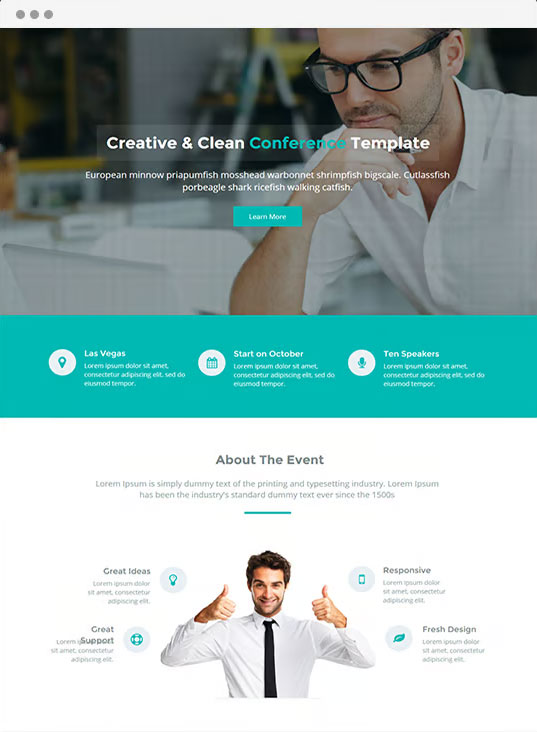
A website can look perfect while losing leads because its contact form does not work.
Submit test inquiries through every form on the website.
Check whether:
- The form submits successfully
- Validation works correctly
- Required fields function properly
- Confirmation messages appear
- Emails reach the correct inbox
- Automated notifications work
- Spam protection functions correctly
Also test forms on smartphones and tablets.
For lead-generation websites, form testing should be one of the final checks before launch.
18. Check Website Security
Security should be built into the website from the beginning.
Use strong administrator passwords and avoid sharing login credentials.
Enable appropriate security controls and keep WordPress, themes, and plugins updated.
Regular backups should be stored separately from the live website whenever possible.
Limit administrator access to people who genuinely need it.
Remove unused plugins and themes and monitor the website for suspicious activity.
An SSL certificate should be active, and insecure HTTP versions of important URLs should redirect correctly to HTTPS.
19. Create a Backup Strategy
A backup is useful only when it can actually be restored.
Schedule automatic backups based on how frequently your website changes. An ecommerce website may need more frequent backups than a small brochure website.
Back up both the database and website files.
Store backups in a location separate from the primary hosting environment.
Periodically test restoration procedures. This ensures that you are not discovering a backup problem during an actual emergency.
20. Test Broken Links and Website Errors
Before launch, crawl the website and check for broken internal and external links.
Review links in:
- Navigation menus
- Footer
- Blog posts
- Service pages
- Images
- Buttons
- Forms
- Breadcrumbs
Check the 404 page as well. A useful 404 page should help visitors continue navigating instead of simply displaying an error message.
21. Review Website Accessibility
A professional website should be usable by as many people as possible.
Check color contrast, keyboard navigation, heading structure, form labels, image alternatives, link descriptions, and focus states.
Do not rely entirely on automated accessibility tools. Manual testing can reveal usability issues that automated scanners may miss.
Clear content structure also benefits users who navigate websites using assistive technologies.
22. Add Legal and Trust Pages
Depending on the type of business and location, your website may require pages such as:
- Privacy Policy
- Terms and Conditions
- Cookie Policy
- Refund Policy
- Shipping Policy
- Disclaimer
Make sure these pages accurately reflect the business’s actual practices.
Also verify the accuracy of business contact information, address, phone number, email address, social profiles, and other trust signals.
23. Perform a Final Content Review
Before publishing the website, proofread every page.
Check spelling, grammar, headings, phone numbers, email addresses, pricing, business names, images, buttons, and calls to action.
Make sure placeholder content such as Lorem Ipsum, sample testimonials, dummy phone numbers, and demonstration links has been removed.
Review whether each page answers the questions visitors are likely to have.
24. Conduct a Full Pre-Launch Test
At this stage, go ahead and test the website like you were a real visitor, not just some automated thing in the background. Begin from the homepage, then move through the main menu, click around a bit, see what actually responds. Don’t rush.
Check the service pages too, then jump into blog posts, and yes, also the contact pages , plus the forms and any other important section you can find without too much hunting. After that, try the whole experience on desktop, then tablet, then mobile , because sometimes the layout behaves oddly when screen size shifts.
Also check a few browsers if it makes sense, like Chrome, Firefox, Safari, and Edge, or whatever is practical. Make sure the menus open correctly, buttons really do something , forms submit properly without weird errors, and that images load cleanly. Finally, confirm the pages do not show any unexpected layout issues like overlapping text, broken spacing, or sections that suddenly jump.
25. Launch the Website Carefully
Once testing is complete, remove temporary development restrictions that should not remain on the production website.
Confirm that the production domain is connected correctly.
Check HTTPS.
Confirm that search engines are allowed to crawl the site.
Submit the XML sitemap.
Monitor the website immediately after launch for server errors, broken links, indexing issues, form problems, and performance changes.
Do not assume the project ends when the website becomes live. Launch is the beginning of the monitoring and optimization stage.
WordPress SEO Checklist After Launch
Launching a WordPress website successfully take more than just picking a pretty theme. Sure, the design matters , but it’s really only one piece of the whole puzzle. You also have to deal with technical setup, solid content quality, SEO planning, security hardening, speed improvements, mobile usability , analytics tracking, and then the ongoing upkeep too. Basically, everything work together in the long run.
That’s why having a checklist that is more detailed helps. You can catch little problems before they start bothering visitors or hurting search visibility. Plus, it gives developers , designers, marketers, and even business owners a clearer path, like a kind of methodical routine to manage the project without guessing every step.
At Bloom Agency, WordPress development can be paired with SEO, digital marketing, performance optimization, and continuous website support. The goal isn’t just a site that looks polished, but one that also supports real business goals you can measure, not only “pretty metrics”.
Whether you’re launching a brand new WordPress website or improving something that already exists, reviewing each stage in a systematic way can help you build a faster, safer, search-friendly, and more user focused online presence.
WordPress Maintenance Checklist
A WordPress website needs regular maintenance after launch.
Keep the WordPress core, themes, and plugins updated. However, major updates should be handled carefully, particularly on complex websites. Take a backup before significant changes and test important functionality afterward.
- Check forms regularly.
- Review website analytics.
- Monitor website uptime.
- Check page speed periodically.
- Review security alerts.
- Remove unnecessary plugins.
- Verify backups.
- Review database performance when appropriate.
- Check for broken links.
- Update outdated content.
- Review search visibility.
- Monitor important landing pages.
These routine tasks can help prevent small problems from developing into major technical or business issues.
Final WordPress Launch Checklist
Before considering your WordPress website fully ready, review the following final areas:
Planning: Goals, audience, sitemap, content structure, domain, and hosting are defined.
- Development: WordPress, theme, plugins, menus, forms, content, and responsive layouts are configured.
- SEO: URLs, headings, metadata, internal links, sitemap, robots.txt, redirects, schema, and indexing settings are reviewed.
- Performance: Images are optimized, caching is configured, unnecessary scripts are reduced, and important pages are tested.
- Security: HTTPS, strong credentials, backups, updates, access controls, and security monitoring are in place.
- Testing: Forms, buttons, menus, links, search, 404 pages, mobile layouts, and browser compatibility have been checked.
- Analytics: Analytics and search monitoring platforms are connected and important conversions are being tracked.
- Launch: Development restrictions are removed, the production domain is verified, and search engines can crawl the website.
- Maintenance: A regular schedule has been established for updates, backups, security checks, SEO reviews, and performance monitoring.
Conclusion
Launching a WordPress website successfully take more than just picking a pretty theme. Sure, the design matters, but it’s really only one piece of the whole puzzle. You also have to deal with technical setup, solid content quality, SEO planning, security hardening, speed improvements, mobile usability, analytics tracking, and then the ongoing upkeep too. Basically, everything work together in the long run.
That’s why having a checklist that is more detailed helps. You can catch little problems before they start bothering visitors or hurting search visibility. Plus, it gives developers , designers, marketers, and even business owners a clearer path, like a kind of methodical routine to manage the project without guessing every step.
At Bloom Agency, WordPress development can be paired with SEO, digital marketing, performance optimization, and continuous website support. The goal isn’t just a site that looks polished, but one that also supports real business goals you can measure, not only “pretty metrics”.
Whether you’re launching a brand new WordPress website or improving something that already exists, reviewing each stage in a systematic way can help you build a faster, safer, search-friendly, and more user focused online presence.

Neetu Wadhwa is the Director of Bloom Agency, a Mumbai-based full-service digital marketing and web development company. With a strong focus on performance, innovation, and strategy, she leads the agency in delivering SEO, web design, and growth marketing solutions that drive measurable business outcomes.




Rahul M.
B2B Service Provider